 JKG
Neigungskurs Musik
JKG
Neigungskurs Musik
How to manually create an OLy toolbar in LibreOffice Writer
In the main menu, click
View > Toolbars > Customize...
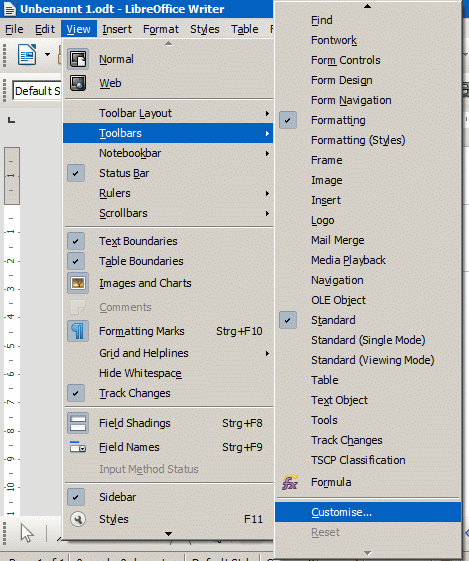
A new window pops up:
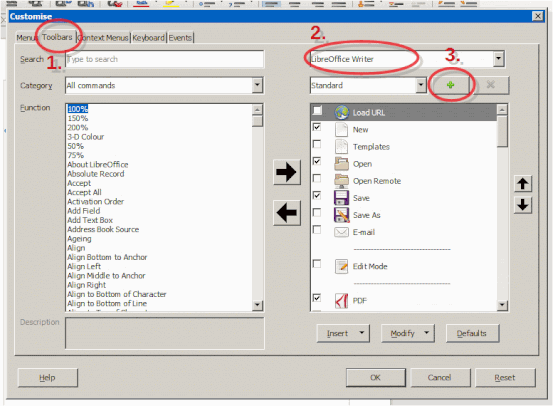
- Click on the "Toolbars" tab.
- Make sure the dropdown box at the top right has selected "LibreOffice Writer".
Your changes then will be valid for all Writer documents, not only the one currently opened.
BTW: This guide should also work in Draw and Impress. The dropdown box will then read "LibreOffice Draw" or "LibreOffice Impress" respectively. - To add a new toolbar, click the button with the green Plus sign.
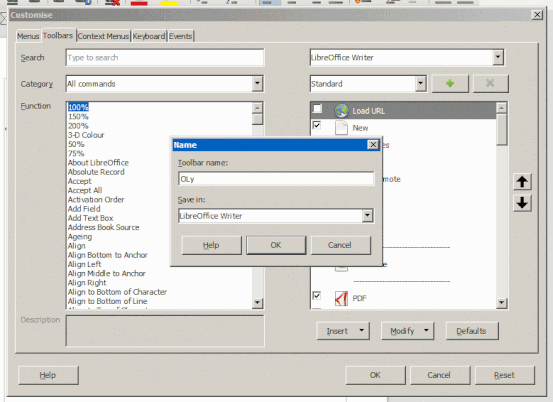
- Enter a Toolbar name, e.g. "OLy".
- Again, make sure the dropdown box below "Save in:" reads "LibreOffice Writer" (or "Draw" or "Impress" respectively...)
- Click the "OK" button.
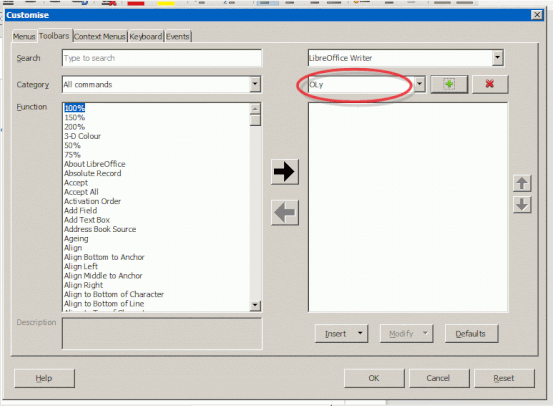
In the dropdown box besides the "Plus" button, you should see the name of your new toolbar.
(If not, click on the box and select the toolbar you want to modify.)
The toolbar is still empty, so we want to add a button.
First, we have to find the command that launches the OLy macro.
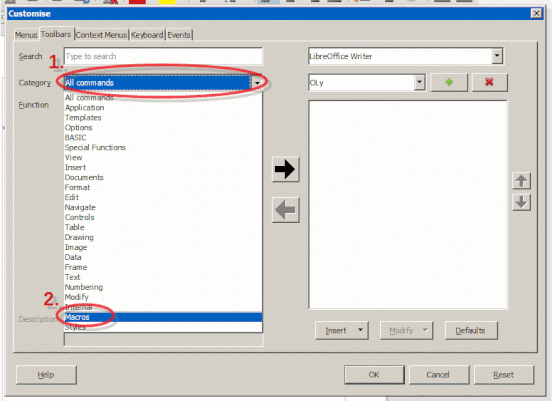
- Click on the "Category"dropdown box.
- At the bottom, click "Macros".
Eventually, you now get a message box that complains about a missing JRE:
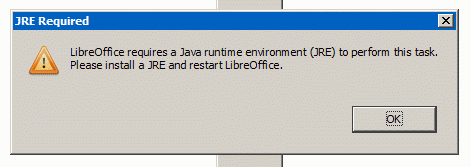
It seems that you can safely ignore that message. Just click "OK" to close it.
Now there are two possible cases:
Case 1:
If you have chosen to install OLy "For all users", you will find an OOoLilyPond section within "LibreOffice Macros":
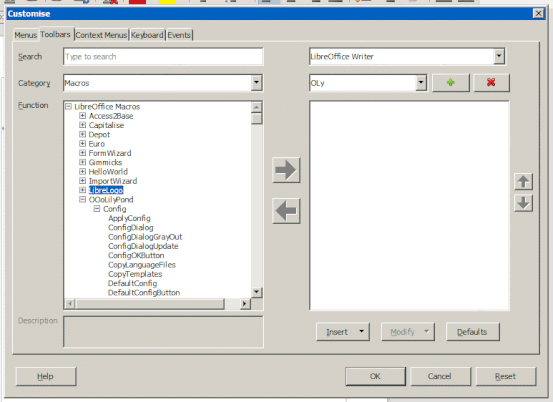
(You can get a better view by hiding those many sub-entries. Double-click on the tiny sqares with "Minus" signs inside to make the branches collapse.)
Case 2:
If you have installed OLy "Only for me", the OOoLilyPond sections can be found under "My Macros":
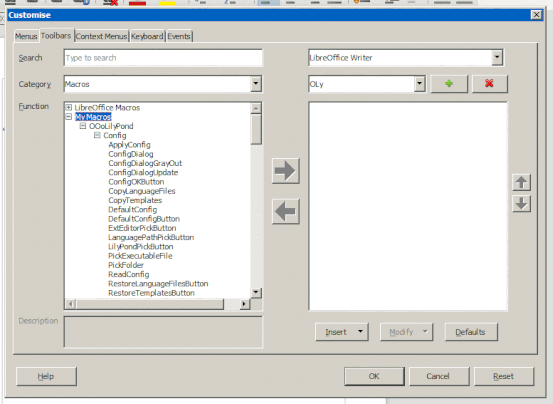
- Now that you've found the OOoLilyPond section, find the sub-section in it with the same name OOoLilyPond.
Inside that, there is an entry that reads (again) OOoLilyPond.
(Along your path, you have three times chosen "OOoLilyPond".)
Click on that entry to select it. - Click the big button with the arrow pointing to the right.
This will add a button with the OOoLilyPond command to your toolbar.
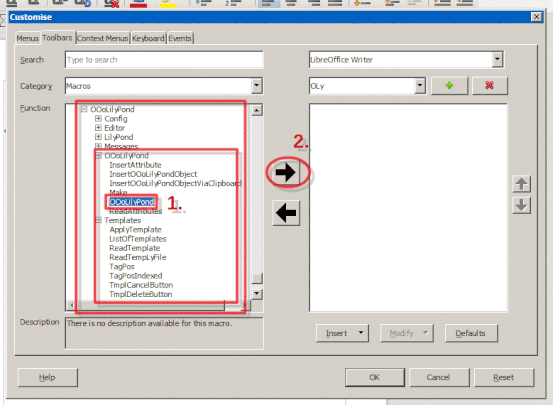
At the right side, you can now see what's inside your toolbar:
One button called "OOoLilyPond".
Below that white area is a "Modify" button. Click on it and select "Rename":
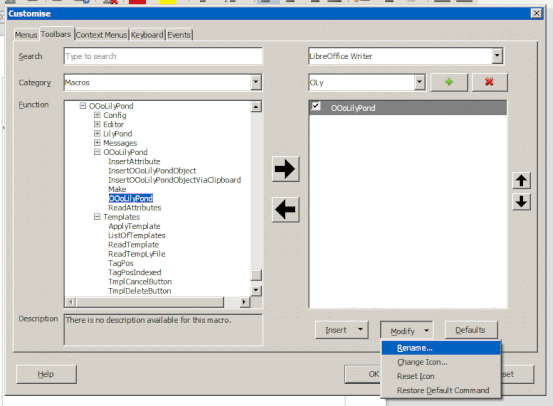
To keep the button small, you can enter a shorter name, e.g. "OLy".
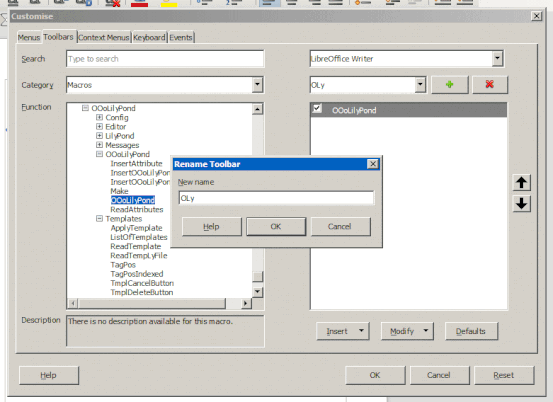
When finished, click the "OK" button.
(The dialog title "Rename Toolbar" seems to be a mistake. It is for renaming a single button.)

That's it.
You can click the "OK" button at the bottom.
Congratulations.
Now you have a toolbar with an "OLy" button that launches the macro.
